Database Settings
Revisr gives you the power to track as little or as much of the WordPress database as you want. If you’re just looking to backup your entire site, you can set it to track all tables so you always have a complete copy of your website. Or if you have a complex site with development and staging environments, you can set different settings appropriate for each environment.
To set this up, go to Revisr -> Settings -> Database.
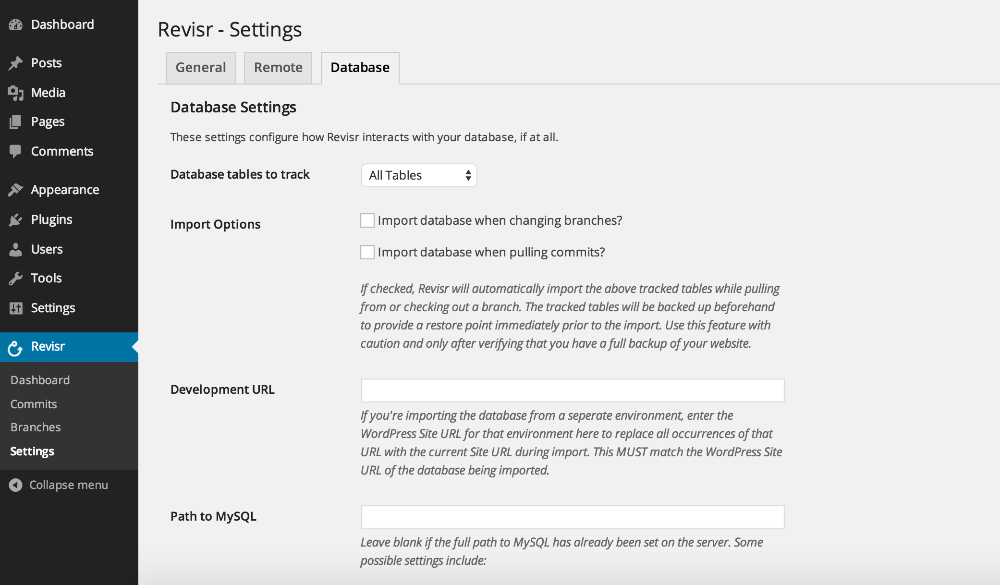
Database tables to track
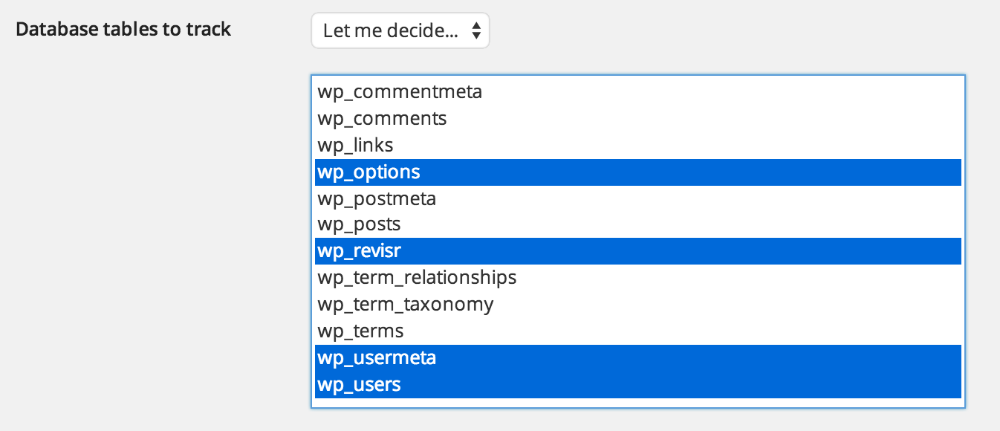
If new tables are detected when importing, you will be notified of the new tables and asked if you want to import and add them to version control.
Import database when changing branches
This setting allows you to keep separate versions of the database on different branches. It works like this:
- A user changes to a different branch with this setting enabled
- Immediately before Revisr checks out the new branch, a database backup is taken of the old branch
- Immediately after Revisr checks out the new branch, Revisr imports the last backup taken on that branch
This keeps the database essentially separate between branches. Note: If enabled, this should be enabled for all branches.
Import database when importing commits
This setting allows you to push up database changes between environments, for example if you were pushing to a staging environment from a local development environment. This works as follows:
- A user clicks “Pull Changes” on the Revisr dashboard, or the changes are pulled automatically via auto-pull
- Revisr pulls down the changes, and backs up the database to provide a restore point to before the import
- Revisr imports the tracked database tables (see above)
- Revisr runs a search/replace for the desired URL (see below)
Development URL
If set, Revisr will replace this URL in your tracked database table with the WordPress “Site URL” of the current website. This is useful if you’re importing the database from another environment, such as a local or development server.
Database Driver
There are currently two options for how Revisr backs up and imports your database:
- MySQL
- WordPress
If set to MySQL, Revisr will attempt to use the MySQL binaries installed on your server for backups/imports. This is usually faster and is recommended for most sites, but requires that MySQL is installed on the server and that the environment PATH to MySQL has been set on the server. If this hasn’t already been set, you can use the “Path to MySQL” setting to set the correct path (see below).
If set to WordPress, Revisr will use native WordPress and PHP functions for backups/imports. This can be slower, but should work on all servers.
Regardless of the database driver setting, database backups will be located in the “wp-content/uploads/revisr-backups” directory.
Path to MySQL
If you’re seeing errors related to backing up the database, this is likely the culprit. The path to MySQL is typically preconfigured for most servers/web hosts, but sometimes (especially with MAMP or WAMP) it needs to be set manually.
Some example settings include (note the trailing slash):
For MAMP: /Applications/MAMP/Library/bin/
For WAMP: C:\wamp\bin\mysql\mysql5.6.12\bin\
Please note that the exact path to your installation of MySQL may vary.